
AI project manager,
at your fingertips.
Your next feature. That bug you keep putting off. Add them to the board and put AI to work on the code. LStack organizes the coding and review, then keeps picking up ready tasks—while you think about what to build next.
Public Beta for Apple silicon macOS, x86-64 Linux, and ARM64 Linux. Docker is needed only for managed workers and container-backed project runtimes.
A ticket is a task: a feature, a fix, or an improvement. Describe what you want and what a good result looks like.
Mark tasks ready, and LStack assigns AI to work on them. Follow the progress on your board instead of starting a new conversation for every task.
A ticket is a task: a feature, a fix, or an improvement. Describe what you want and what a good result looks like.
Mark tasks ready, and LStack assigns AI to work on them. Follow the progress on your board instead of starting a new conversation for every task.
From your first ticket to your next idea.
Start with something you want to build. Here’s the journey with automatic review turned on.
- 01You
Get it out of your head. Onto the board.
Add a feature, bug fix, or improvement as a ticket. Say what should happen and how you’ll know it’s right. Move it to To Do when you’re ready for AI to start.
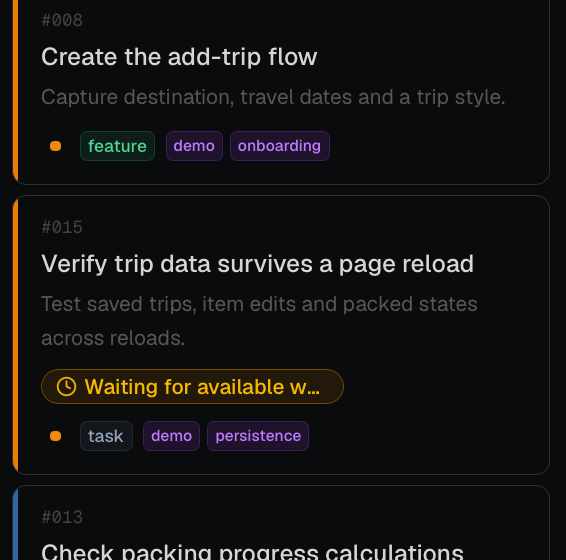
To Do · waiting to start - 02LStack
AI gets to work.
When a suitable AI coding tool is available, LStack assigns the task. It works on your project’s code while you follow progress—or plan the next thing.
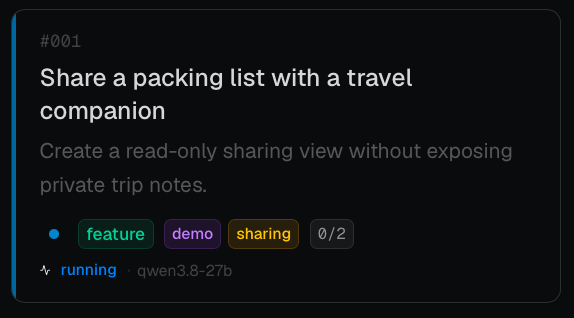
In Progress · AI is working on the task - 03LStack
A second look at the code.
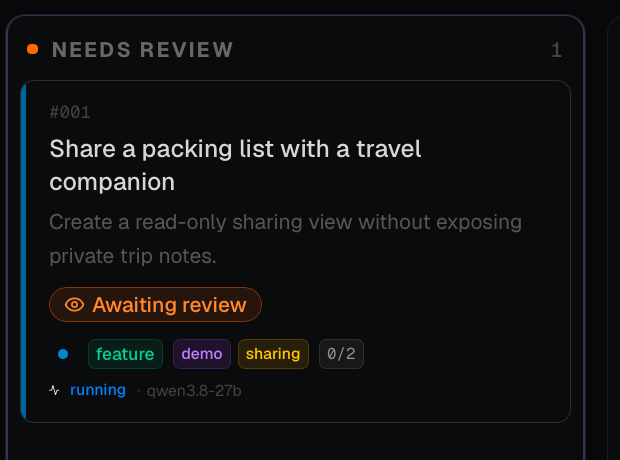
A separate AI review compares the changes with your instructions and looks for problems. Open the ticket to see the review’s decision and a short summary.
Needs Review · waiting for review - 04LStack
One task done. More ideas waiting.
Accepted work moves to Done. LStack keeps picking up ready tasks, so the next item doesn’t need another ‘please start’ from you.
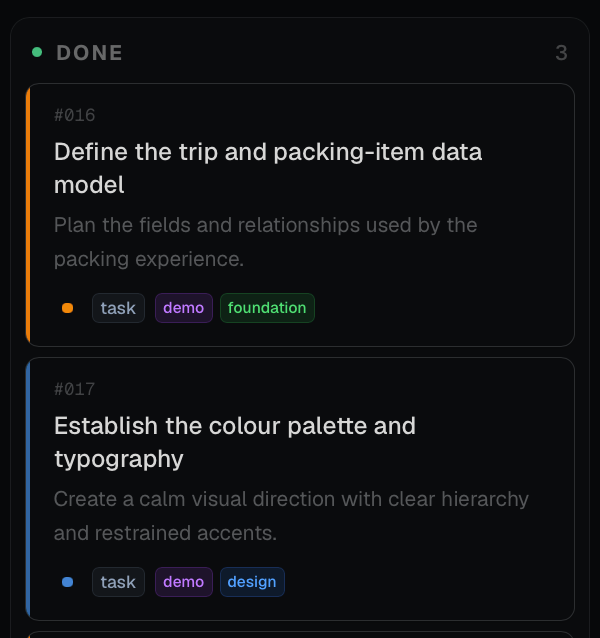
Done - 05You
Your call, when it needs one.
Along the way, a task may need more detail, permission, or a decision. Open the ticket to see what’s needed. Once you’ve addressed it, move it back to To Do.
Less chasing. More clarity.
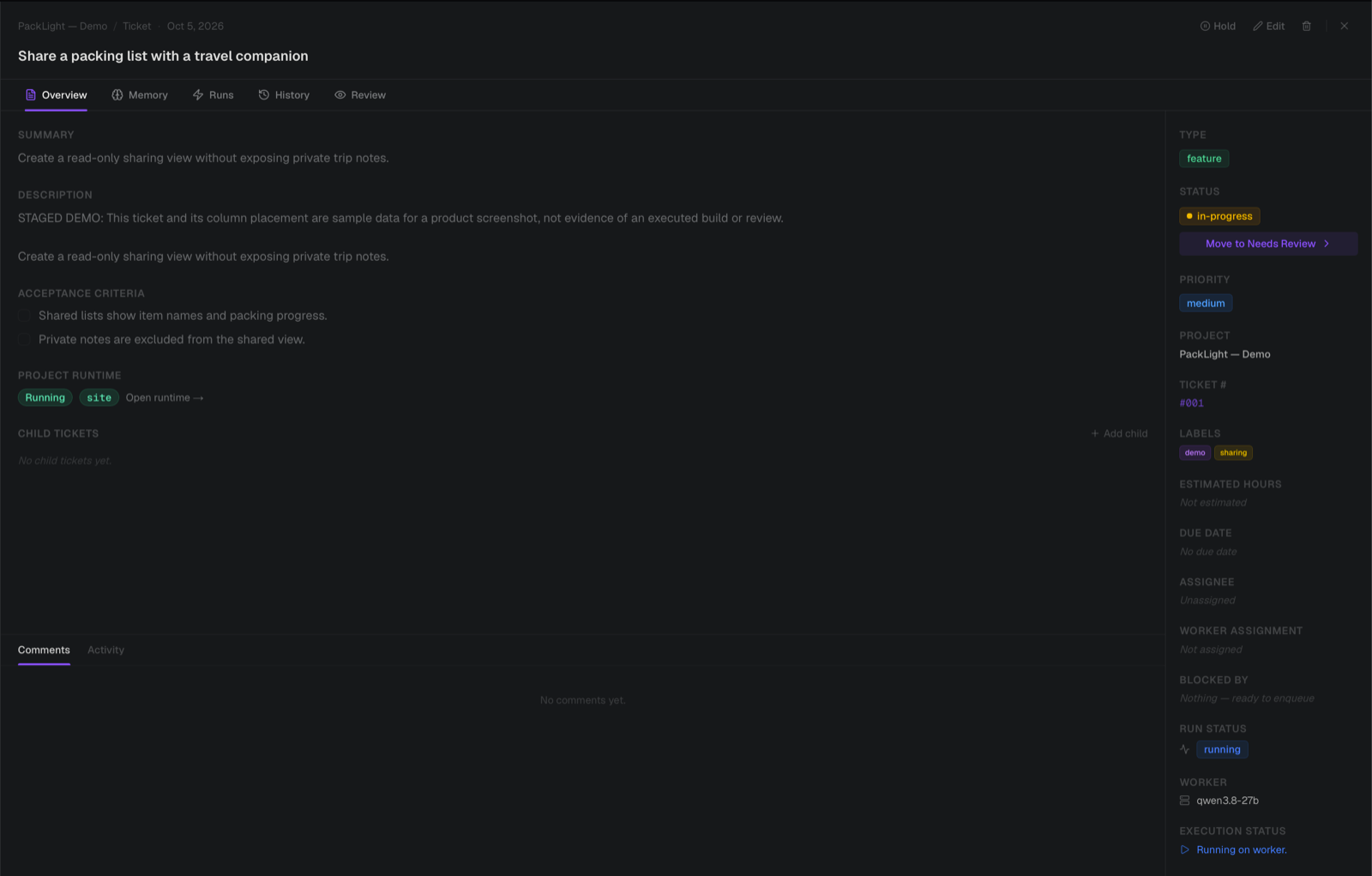
No more piecing the story together from separate AI chats. Open a ticket to see its progress, the review’s decision, and where your attention is needed.
- The brief
Your instructions and what the finished result should do.
- The story so far
The work history and a summary of the review.
- Who’s on it
See which AI is assigned and whether it’s working.
- Your say
Pause, edit, or move a task when plans change.
- Try it out
When your project is set up to run, find its status and any available link here.
Your project. Your pick of AI.
You don’t have to marry one model to get your project moving. Choose a supported model for the coding, give another the review, or use the same one for both. LStack keeps the work organized while you find the combination that works for you.
- One home for your projects
- Keep your code, tasks, and progress together on your computer.
- Your ideas, lined up
- Plan the next feature, capture a bug, or queue up improvements.
- AI on the task
- Put ready tasks to work without opening a new chat for each one.
- Your project, running
- Once set up, start and stop your project from LStack.
- A familiar favorite
Start with a supported AI model you already like using.
- A second opinion
Choose a different model to review the code—or use the same one.
- Room to experiment
Local models or cloud services: find what works for your projects.
Workers and container-backed runtimes require Docker. Stack mode also requires Docker Compose v2.
LAN access is off by default and requires an owner account. Basic LAN mode isn’t encrypted, so only enable it on a network you trust.
Your backlog has waited long enough.
Pick a feature you’ve been meaning to build. Install LStack, connect your AI tools, and give it a place on the board.
- 01Install
Apple silicon macOS, x86-64 Linux, and ARM64 Linux. Docker is needed only for managed workers and container-backed project runtimes.
- 02Start
lstack startThe installer doesn’t start LStack.
- 03Open the board
http://127.0.0.1:4700The dashboard runs on your machine.
It’s a beta: features and workflows may change between releases, so review the code AI produces before you rely on it. Logs and support bundles help when something breaks, and feedback shapes the next release.